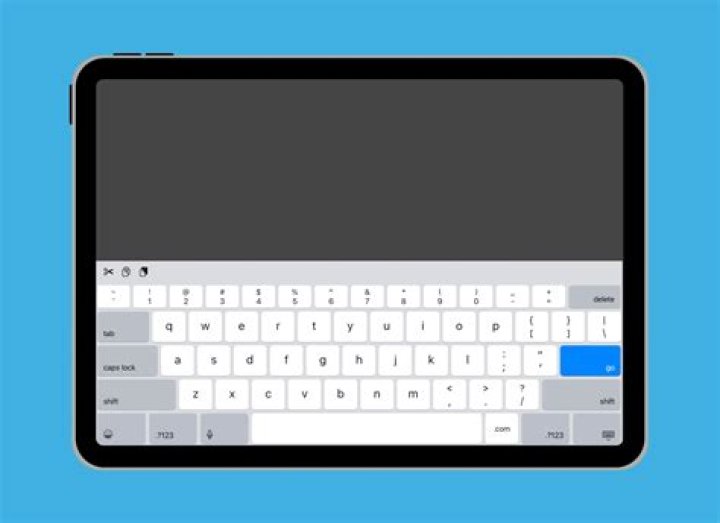
If the iPad keyboard appears as a small floating window or is split in half, there's an easy way to get it back to full size. Here's how.
If the keyboard on an iPad looks small or appears to be split in half, there is an easy way to change it back to the usual size. While the iPad keyboard might seem simple enough, Apple has included several features to make typing much easier for users. Among these is the ability to change the layout of the keyboard, by splitting it in half, turning it into a small floating window, or undocking it from the base.
A small floating keyboard is useful when a user wants to type on the iPad with one hand, since it shrinks to smartphone size. Because the keyboard is floating, it can be repositioned anywhere on the screen to make one-handed typing easier, whether that's on the right, left, in the corners, or at the edges of the screen. A split-screen keyboard on the other hand can be a gamechanger when a user wants to hold the iPad with two hands and type using both thumbs. While it might seem difficult to type on a split keyboard layout, it's actually quite intuitive.
If a split keyboard layout has been enabled either intentionally or by accident, there's an easy way to get it back to normal. On the right side of the split keyboard, look for the little keyboard icon with a downward-facing arrow at the bottom right corner. Long-press the button and three options should appear – Merge, Dock and Merge, and Floating. Tap on Merge to return the keyboard to its usual full-size layout. If the split keyboard is moved up on the screen, tap on Dock and Merge to return to full size and dock it at the bottom. It's important to note that tapping on the keyboard icon will hide the keyboard, and only a long-press will bring up these options. If the keyboard is hidden, tap on a text input area in the app where the keyboard is being used to make it reappear.
Disable Split Keyboard On An iPad
Users who don't need to use the split keyboard can turn off the feature in Settings. There are two methods to do this. The first is from the keyboard itself. Look for the emoji or globe key on the keyboard, which should be on the left side. Long-press the key, and select Keyboard Settings from the menu. Tap on it, which will open the Keyboard section in the Settings app. Under All Keyboards, turn off the toggle next to Split Keyboard to disable the feature. Alternatively, users can open Settings, click on General, and then Keyboard to find the same option.
Turning off a floating keyboard on the iPad works differently, and can be done using a simple gesture. All users need to do is pinch outward using two fingers, which will expand the keyboard and dock it at the bottom. Pinching inward on a full-size keyboard on the other hand will open the floating keyboard on the iPad.
Next: How To Change Keyboard Brightness On The iPad's Magic Keyboard
Source: Apple